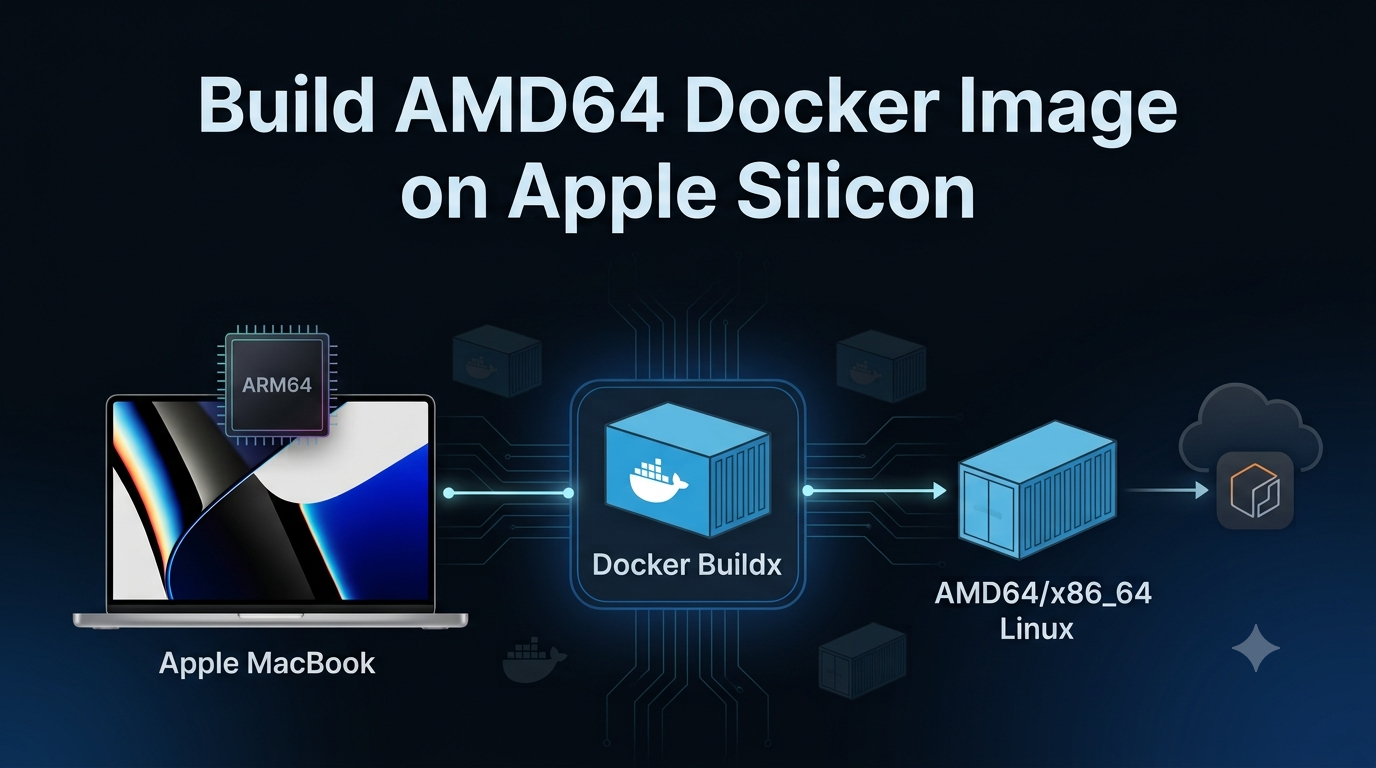
When we are using a Mac with an Apple Silicon processor, such as an M1, M2, M3, or M4, we may run into an architecture-related issue when building Docker images.
A common scenario is that we build a Node.js Docker image on our Mac and later try to use that image in an environment that expects AMD64 (linux/amd64). Since Apple Silicon Macs use the ARM64 (linux/arm64) architecture, Docker may build the image for ARM64 by default.
This can result in errors when the image is deployed to an AMD64-based environment.
This post explains how to explicitly build a Node.js Docker image for AMD64, verify the architecture, and push the image to Amazon Elastic Container Registry (ECR).
Problem:
Apple Silicon Macs use ARM64 processors. EX: MacBook with M1/M2/M3/M4 uses ARM64
However, many cloud environments and container runtimes may use AMD64
So If we build a Docker image normally on an Apple Silicon Mac, Docker can build the image using the host architecture, resulting in an ARM64 image. If that image is then pushed to a registry and consumed by an AMD64 environment, we can encounter an architecture mismatch.
Solution:
The following example uses Node.js 24 Alpine as the base image.
1. Create a directory for the image.
Open your terminal and create or navigate to your working directory
cd Desktop/myimage
2. Create the Dockerfile.
Create a Dockerfile
echo "FROM --platform=linux/amd64 node:24-alpine" > Dockerfile
3. Build the AMD64 image.
Create a Dockerfile
docker buildx build \

  --platform linux/amd64 \

  --provenance=false \

  --sbom=false \

  -t nodejs:24-alpine \

  . --load
4. List the images
List the images and copy the imageID
docker images
5. Verify the architecture.
Verify the architecture, the expected output is amd64
docker inspect --format '{{.Architecture}}'
Now when image is created with amd64, push to ECR with below steps
1. Authenticate with ECR
aws ecr get-login-password --region us-east-1 | \

docker login --username AWS \

--password-stdin awsAccountID.dkr.ecr.us-east-1.amazonaws.com
2. Tag the image
docker tag nodejs:24-alpine \

awsaccountID.dkr.ecr.us-east-1.amazonaws.com/nodejs:24-alpine
3. Push to ECR
docker push \

awsaccountID.dkr.ecr.us-east-1.amazonaws.com/nodejs:24-alpine
If this post helps you or if you want to add any suggestion, feel free to add a comment.
Prakash Pradhan
Sr. Software Engineer
Senior Software Engineer with 10+ years of experience in designing and scaling distributed systems and full-stack applications. Experts in optimizing system performance, and delivering high-impact technical solutions across the entire software development lifecycle.







Comments
No comments yet.